# Writing email for AI summaries and inbox assistants
Canonical: https://brew.new/blog/email-for-ai-readers
Author: Thomas Park
Published: 2026-10-09
Updated: 2026-10-09
Writing email for AI readers means building a marketing email so the assistants inside inboxes can find its key facts and repeat them correctly. Apple Intelligence, Gemini in Gmail and Yahoo Mail now read a lot of email before the person does. On an iPhone with Apple Intelligence, a short summary sits under each email, right where your preview text used to be.
No vendor publishes how its model picks what goes into a summary, and we won't pretend to know. What they do publish is enough to act on, and most of it is old advice with higher stakes: offer, deadline and action in plain text near the top, and every part of the email saying the same thing.
## Key takeaways
- Apple Mail shows "a short summary" under each email when Apple Intelligence is on, so your first body lines matter as much as the preview text.
- Since September 15, 2026, Gmail's AI Overviews in search answer questions like "when does the sale end" for paid users worldwide with Gmail set to English.
- Put the offer, the full deadline (date, time, time zone) and the action in live text in the first two lines, and repeat them in the subject or preview.
- Never let an image hold the only copy of an offer or deadline.
- A `DiscountOffer` annotation in JSON-LD can give a Gmail Promotions email a deal badge (four words max), a code, and a second shot at the top of a bundle within three days of expiry.
- Don't hide text for machines. Gmail's sender guidelines say "Don't use HTML and CSS to hide content in your messages", and hidden text is how prompt-injection attacks on summaries work.
## What inbox assistants do with your email today
| Client | Feature | What it does | Who has it |
| --- | --- | --- | --- |
| Apple Mail | Inbox summaries | Short summary under each email in the list | Apple Intelligence devices, supported languages |
| Apple Mail | Priority messages | Time-sensitive mail moves to the top of the inbox | Same, in Primary or List View |
| Gmail | AI Overview thread summaries | Summary card at the top of a thread, suggested reminders for tasks with due dates | All Gmail users, supported languages |
| Gmail | AI Overviews in search | Answers a natural-language search from your emails | Paid plans, Gmail set to English |
| Gmail | AI Inbox (beta) | Suggested to-dos and topics, Primary tab only | US, English, eligible Google AI plans |
| Yahoo Mail | Message summaries | A rundown of the important info in a message | Yahoo Mail app and New Yahoo Mail |
### Apple Mail
Apple's [iPhone guide](https://support.apple.com/guide/iphone/check-your-email-iph461684497/ios) is blunt: "A short summary automatically appears under each email in your inbox." Litmus spelled out the consequence in its [preview text guide](https://www.litmus.com/blog/the-ultimate-guide-to-preview-text-support): "Rather than previewing the first few lines of each email, users can now see AI-generated summaries directly in their inbox."
Apple's [categories page](https://support.apple.com/guide/iphone/use-categories-iphfe4a36baf/ios) has a line marketers should read twice: "When a Transactions, Updates, or Promotions message includes time-sensitive information, it will also be included in the Primary message list." [Priority messages](https://support.apple.com/guide/iphone/filter-emails-iph057d5e515/ios) then lifts time-sensitive mail to the top. Apple's example of urgent email is ["a same-day dinner invitation or boarding pass"](https://support.apple.com/guide/iphone/apple-intelligence-stay-organized-dom122pp864g/ios), not a sale, and it doesn't say how it decides.
iOS 27 shipped on September 14, 2026, and Apple's [announcement](https://www.apple.com/newsroom/2026/09/major-updates-for-apples-software-platforms-are-now-available/) says Siri AI "can understand personal context across messages, emails, photos, and more." The [release notes](https://support.apple.com/en-us/149076) add Suggestions in Mail, which "help you take action based on the context of your emails, like getting directions to a restaurant you booked." Summaries and Priority messages stay on the [feature list](https://support.apple.com/en-us/121115). More of what an iPhone user sees about your email now comes from Apple's models.
### Gmail
**Thread summaries.** Google's [January 2026 announcement](https://blog.google/products-and-platforms/products/gmail/gmail-is-entering-the-gemini-era/) said AI Overview conversation summaries were "rolling out today for everyone at no cost", starting in the U.S. The [help page](https://support.google.com/mail/answer/16561387?hl=en) now says they're "available to all Gmail users globally" and can "Suggest reminders for tasks with a due date." Automatic cards appear [where "a summary is helpful, such as longer email threads"](https://workspaceupdates.googleblog.com/2025/05/gemini-summary-cards-gmail-app.html), so a single promo may not get one, but anyone can tap "Summarize this email".
**AI Overviews in search.** On September 15, 2026 Google [expanded them](https://workspaceupdates.googleblog.com/2026/09/gmail-searchs-ai-overviews-now-available-globally.html) "to global users (with paid plans) who have their Gmail language set as English." Personal accounts in the EEA, UK, Switzerland and Japan are excluded. The [help page](https://support.google.com/mail/answer/16789526?hl=en) explains it: "Gmail first finds the most relevant emails. An AI Overview is then generated using the information from those emails." If a subscriber searches "when does the Acme sale end", the answer is whatever your emails say.
**AI Inbox.** This US, English-only beta "Only surfaces information from messages in your 'Primary' tab," per its [help page](https://support.google.com/mail/answer/16845247?hl=en), so most marketing email won't appear.
**Summary cards and Promotions.** Gmail's [summary cards](https://support.google.com/mail/answer/15195630?hl=en) "provide important information from your email" for orders, events, travel, bills and promotions. Tape this line to your monitor: if a card "has limited information, there may not be enough details in the email." In September 2025 Google [announced](https://blog.google/products-and-platforms/products/gmail/one-stop-purchase-tracking-in-gmail/) a "most relevant" Promotions sort and "nudges" to "highlight upcoming deals and timely offers". Annotations, covered below, are the structured way in.
### Yahoo Mail
Yahoo's [iOS help page](https://help.yahoo.com/kb/features-yahoo-mail-ios-sln36900.html) says its AI summaries show "the important info, such as dates and times of events, travel confirmation details, billing details, verification codes and more." Desktop users can [turn them off](https://help.yahoo.com/kb/SLN37077.html). In March 2026 Yahoo [launched Planner](https://www.yahooinc.com/press/yahoo-mail-introduces-planner-an-ai-powered-personal-productivity-hub) for US app users, which pulls things like "an appointment, bill payment deadline" out of email into a calendar and to-do list.
## What the vendors say, and what they leave out
Look at the vendors' examples: a boarding pass, a dinner invitation, a plumber's quote, a bill, a verification code. These features are built for the reader's life admin, and anyone claiming to know how Gmail or Apple weighs sentences in a promo is guessing.
The docs do agree on the basics. The features read message content and pull out concrete facts like dates, codes and amounts, and Google admits a card has less to say when those are missing. So if the offer and deadline are clear text, a summary can repeat them. If they sit in an image or across three paragraphs, it may drop them. If subject, preview and body disagree, it may repeat any of them.
## Put the offer, the deadline and the action first
This is the inverted pyramid good copy always used. The difference is that the skimmer is now often a model, and what it writes is what your subscriber sees.
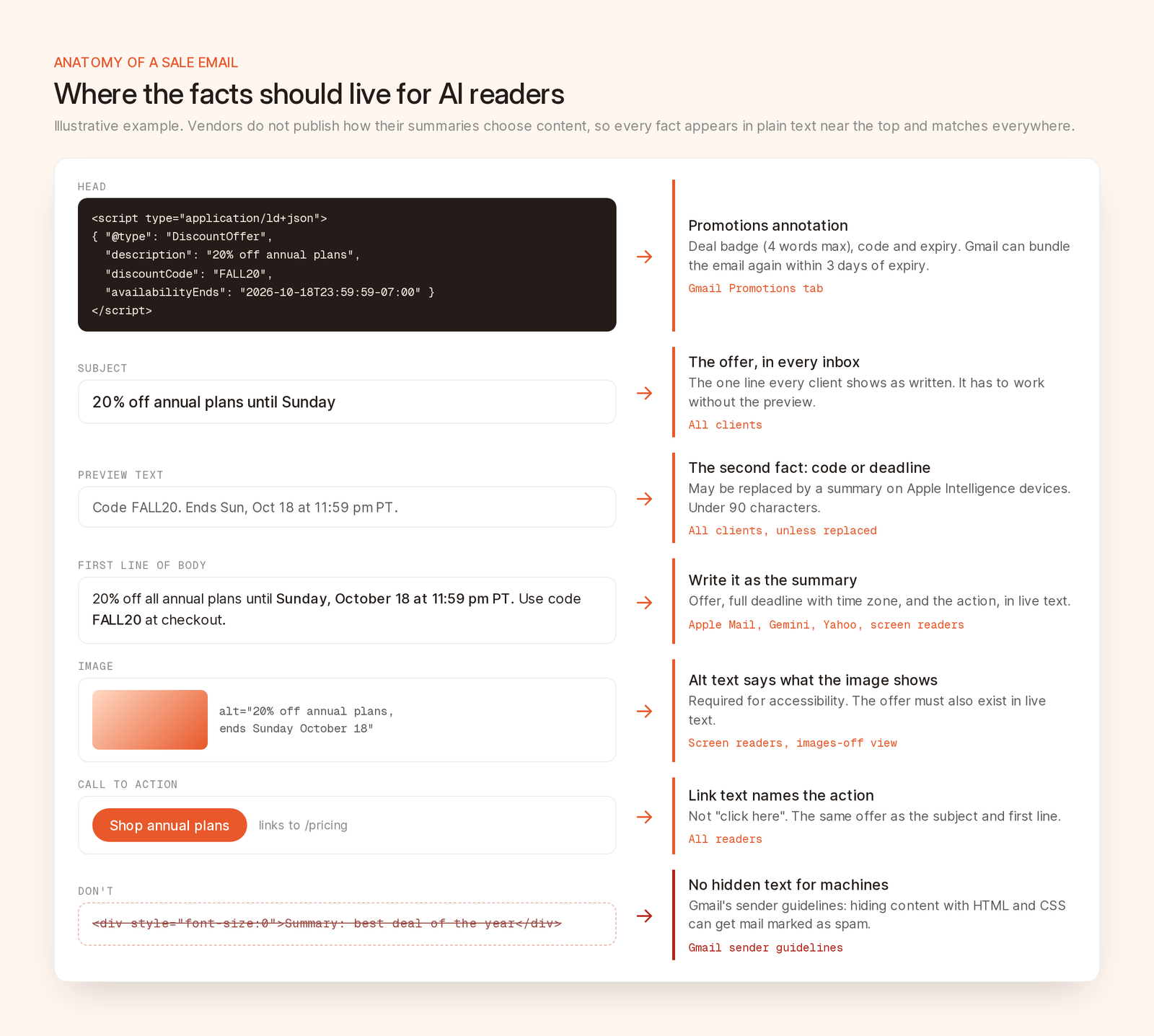
*One example email laid out so a summary, a search answer and a Gmail deal annotation all find the same facts.*
### Subject and preview text
The subject is the one line you control in every inbox, and on an iPhone it may have to work without the preview. Put the offer in it, as Litmus says: "prioritize getting your main message or hook across in your subject line." Use the preview for the next fact, usually the deadline or code, and keep it under 90 characters (Litmus's number). Our [subject line guide](/blog/email-subject-lines) covers wording and testing.
### The first lines of the body
Write the first sentence of the body as if it were the summary. Name the offer, the deadline and what to do:
> 20% off all annual plans until Sunday, October 18 at 11:59 pm PT. Use code FALL20 at checkout.
That sentence works for a skimming human, Apple's summary, a Gmail search answer and a screen reader. Push "View in browser" links, logo-only headers and long greetings below it, or cut them. They come first in the HTML and give a summary nothing.
### Write dates and amounts in full
"Ends Sunday" means nothing in a summary read on Monday, or in a search answer three weeks later. Write "Sunday, October 18 at 11:59 pm PT" and "20% off annual plans", not "huge savings". Gmail's reminders and Yahoo's Planner both need a date written out.
## Keep the facts in live text, and keep them consistent
### No image-only offers
One big image with a line of text under it gives a summary almost nothing to read. If the offer and deadline are baked into the hero, repeat them in live text.
Give images that carry meaning alt text that says what they show, `alt="20% off annual plans, ends Sunday October 18"` rather than `alt="hero"`, and mark decorative ones `alt=""`. [WCAG 2.2](https://www.w3.org/TR/WCAG22/) requires text alternatives for non-text content. No vendor says its summaries read alt text, so don't count on it.
### One set of facts everywhere
Say the subject reads "Last chance: 20% off", the preview says "Ends tonight", and a paragraph lower down says the sale runs to Sunday. A person reconciles that. A summary may pick one. Check that discount, deadline and code match everywhere, in every segment version.
Search makes this stricter. Gmail answers from several emails, so if Friday's email extends Tuesday's sale, write "extended to Monday, October 19" in full. And make buttons say what they do: "Shop annual plans" gives a summary an action to repeat, "Click here" doesn't.
## Add Gmail's promotion annotations
Google's [email annotations guide](https://developers.google.com/workspace/gmail/promotab/overview) documents structured data for the Promotions tab. A JSON-LD `
```
A deal annotation needs at least one of `description`, `discountCode` or `availabilityEnds`. A deal card needs a description plus `offerPageUrl` or `merchantHomepageUrl`, and Gmail prefers the offer page. From Google's [best practices](https://developers.google.com/workspace/gmail/promotab/best-practices):
| Field | Google's guidance |
| --- | --- |
| Deal badge (`description`) | Specific, like "20% off". No more than four words, since it competes with the subject |
| `discountCode` | Only if the code appears in the email. Gmail always shows "Code" before it |
| `availabilityEnds` | Include time and time zone. The email gets two chances at the top of a bundle: at send, and within three days of expiry |
| Expired dates | Don't leave one in. Gmail treats it as an old offer and won't bundle the email |
| Images | No text-only images. HTTPS URLs. 4:5, 1:1 or 1.91:1, center-cropped |
Two caveats. "Quality filters and frequency limits" decide whether annotations show, and Gmail bundles emails without them based on "previous user engagement". Annotations add structure, not rank. And keep them matching the body: JSON-LD saying FALL20 over a body saying FALL25 is the consistency problem again, now in code.
## Do not hide text for machines
The worst idea going around is a hidden second email for the AI: white on white, `font-size:0`, "Summary: the best deal of the year." Don't.
Gmail's [email sender guidelines](https://support.google.com/mail/answer/81126?hl=en) are explicit: "Don't use HTML and CSS to hide content in your messages. Hiding content might cause messages to be marked as spam." Google's [web spam policies](https://developers.google.com/search/docs/essentials/spam-policies) are for websites, but they show the thinking: "Setting the font size or opacity to 0" is hidden text abuse, and "attempting to manipulate generative AI responses in Google Search" is spam.
Google has a reason to be strict. In July 2025, 0DIN published a [prompt-injection proof of concept](https://0din.ai/blog/phishing-for-gemini) against Gemini's "Summarize this email": instructions hidden with `font-size:0` or white text made the summary append a fake password warning. Google's [June 2025 security post](https://blog.google/security/mitigating-prompt-injection-attacks/) describes classifiers that detect "malicious prompts and instructions within various formats, such as emails". Your "helpful" hidden summary looks the same to them.
One honest note: nearly every platform, Brew included, sets preview text with a hidden element, because email has no header for it. Google doesn't carve that out. We read the rule as aimed at content that differs from what readers see, so keep the preview short and consistent with the visible email.
## A pre-send check for AI readers
1. Subject and preview alone name the offer and deadline.
2. The first two body lines could stand in as the summary.
3. The deadline has day, date, time and time zone.
4. With images off, the offer is still there.
5. Alt text on every content image, `alt=""` on decorative ones.
6. Discount, code and deadline match across subject, preview, body, button, annotation and segments.
7. Any `DiscountOffer` badge is four words or fewer, with a future end date and time zone.
8. A search for `display:none`, `font-size:0` and `opacity:0` finds only the preview text.
More on copy in [writing marketing emails people can act on](/blog/how-to-write-marketing-emails). And none of it matters if you don't [reach the inbox](/blog/email-deliverability) first.
## How to do this in Brew
Brew handles several of these checks for you. Its agent writes preview text as one short line that adds to the subject instead of repeating it, and you can edit it in the send dialog's Preview field. On delivery Brew pads the preview with invisible characters, as React Email does, so body copy doesn't spill into the preview line.
Brew's [email audit](https://docs.brew.new/create-emails/audit-email) checks "subject and preview length, clarity, duplication, and placeholders" and "alt text, contrast, document language, headings, and link text." The parts that matter here:
- missing preview text, preview over 90 characters, or preview that repeats the subject
- a subject over 60 characters or nine words
- images with no `alt` attribute, plus an AI review of whether alt text describes the image (a file name fails)
- an AI judgment of whether the subject "accurately names what the email offers" and whether link text says where it goes
- two or more content images with under 10 words of text per image
A full audit costs 5 credits and also runs from MCP (`audit_email`), the CLI and the API. Gmail annotations are outside its scope: Brew doesn't generate `DiscountOffer` markup, and the audit flags any `