Start from a layout another brand already shipped, rebuild it on your brand with one prompt, and export it to Klaviyo, Mailchimp, HubSpot and 8 more ESPs.

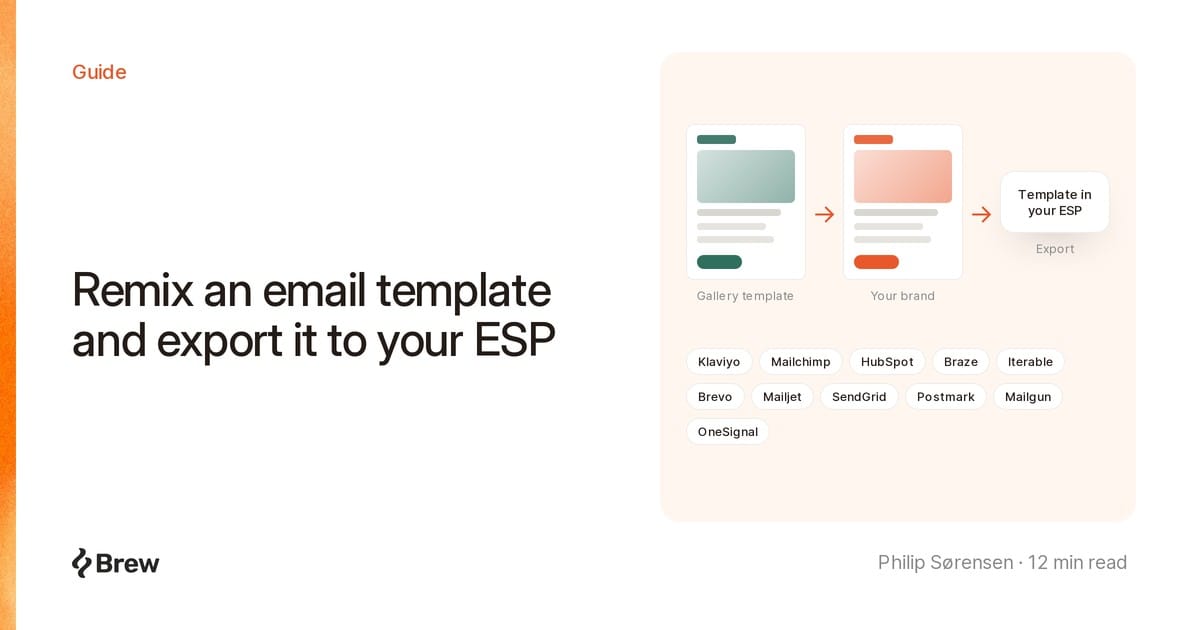
Remixing an email template means rebuilding a layout another brand already shipped on your own brand. Someone else has already decided the sections, the image placement and the footer, and tested it on a real list.
Brew's template gallery holds about 5,100 of those emails from 491 brands. Pick one whose structure fits, rebuild it with a prompt, and export it to the ESP you already use.
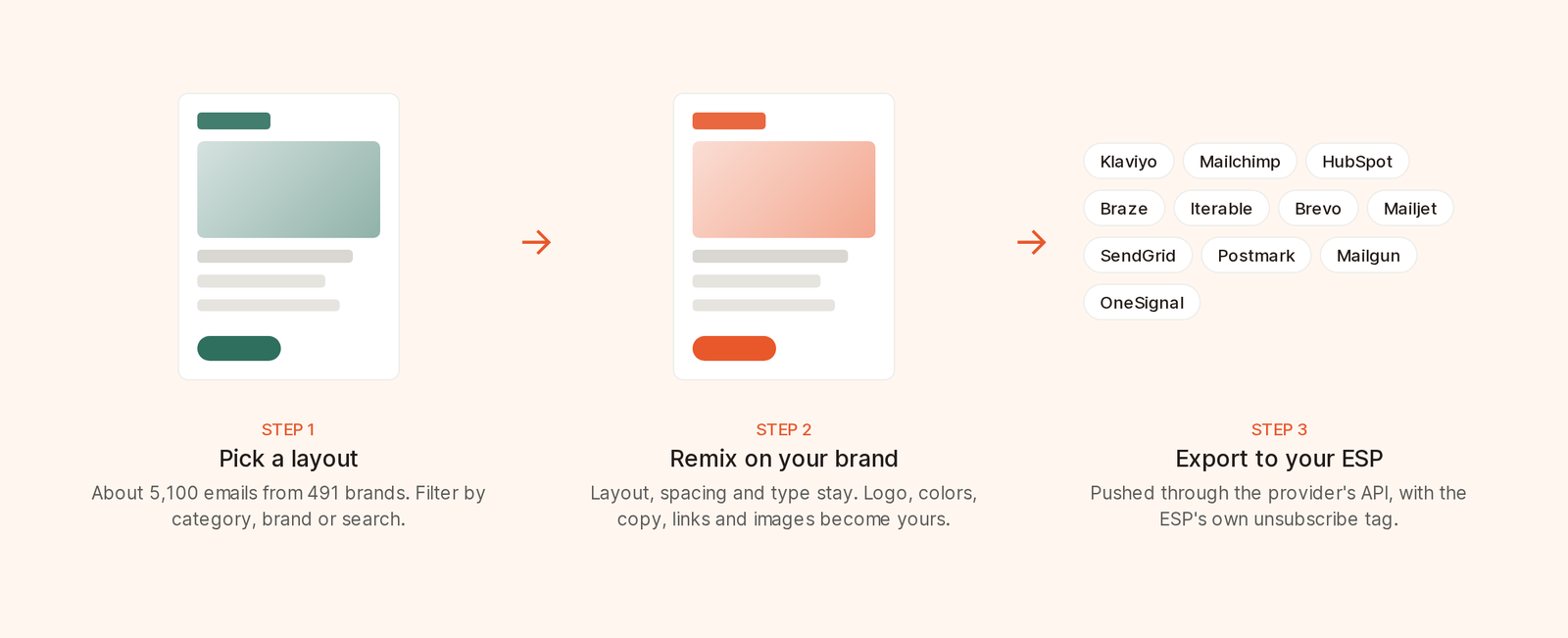
Pick a layout, rebuild it on your brand, export it to your ESP.
The gallery gives you three ways to narrow it down:
The order reshuffles hourly. The templates docs have more detail.
Ignore the colors. They get replaced with everything else except the structure, so judge the shape. My checks:
brew.new/templates/{brand}/{title} with a full preview.The template page also shows how many times it has been remixed and credits the designer.
In the newsletter category you will find Paper's September changelog, which is worth studying:
Big launches get a picture, small fixes get a bullet, and the personal open and close make it read like a note from a person.
To remix it, open the template and write the brief in the prompt box:
Use this for our October update, signed by our CEO. Feature sections for Slack approvals, Intelligent Send and the new email audit. Put the smaller fixes in the bullet list. Drop the tutorial cards. One button to the changelog.
Brew keeps the shape, from greeting to sign-off, writes copy for your brief, applies your logo, colors and footer, and recreates every image in your brand's style.
A recreated image is not a screenshot of your product. For feature announcements, swap in real screenshots before sending. Readers notice.
A remix is only as on-brand as what Brew knows about you. Check two pages first:
email-design.md and image-style.mdOur post on email-design.md explains what goes in it and how Brew extracts one from your site. Importing approved email designs gives Brew a much better start than a website alone. Without a design system, a remix looks like a generic copy of the original.
| From the template | In your remix |
|---|---|
| Layout, section order, spacing | Kept |
| Typography and button styles | Kept |
| Logo, primary color, footer | Replaced with yours |
| Copy and links | Rewritten for your brand and brief |
| Images | Recreated in your brand's style |
| Merge tags | Not carried over |
| Light or dark look | Your design system's theme if set, otherwise the template's |
Three details catch people out.
The remix always builds for the active brand. Name a different brand in the prompt and Brew asks you to switch brands in the top-left and remix again.
The original images never carry over, so you won't ship another company's product photos under your logo.
If the original said "Hi {first_name}", your remix won't. Personalize in your ESP after export.
Signed out, submit a brief in the prompt box and Brew saves the text, asks you to sign in and returns you to the template. Attached files are not kept.
Signed in, opening a template starts a chat in the side panel with the template attached. A prompt saved before sign-in goes back into the composer unsent. Each chat holds one template, and leaving the page detaches it.
An empty prompt works too, using what Brew knows about you. It's a quick way to test a layout. Then keep iterating in the same chat: "tighten the intro to two sentences", "swap sections two and three", "make the button full width on mobile".
The flows gallery has 170+ real multi-email sequences, such as signup and newsletter welcome series of 3 to 12 emails. Remixing one builds the sequence as an automation with the same steps and waits, every email rebuilt on your brand.
By default the automation starts on signup or subscribe. Name an event or audience in the prompt to replace that. Audience-started automations run from the Run button on the canvas. Publishing needs a verified sending domain. Email flows covers flow design.
Open Send, then the Audit tab. It catches placeholder links, missing alt text and HTML large enough for Gmail to clip. The pre-send QA checklist explains each check.
Findings don't block export, but they travel with the template and are harder to spot in the ESP. Clear them in Brew first.
Connect your ESP once from Integrations. Then, on the email:
Brew pushes the template through the provider's API. Supported platforms:
| Klaviyo | Mailchimp | HubSpot |
| Braze | Iterable | Brevo |
| Mailjet | SendGrid | Postmark |
| Mailgun | OneSignal |
Brew converts the HTML for each platform and swaps in its own unsubscribe tag, for example *|UNSUB|* for Mailchimp and {% unsubscribe_link %} for Klaviyo. The footer's unsubscribe link works on your first send, no HTML edits.
When it finishes, See template opens your ESP in a new tab: the template itself for Brevo, Braze, Mailchimp, Iterable, Postmark and SendGrid, the template list or library for Klaviyo, Mailjet, OneSignal, Mailgun and HubSpot. In HubSpot, look in the brew-exports folder. If the connection lacks details for that link, such as a Mailchimp data center or HubSpot portal, the button is hidden. The export still happened.
Platform differences worth knowing:
Setup docs: Klaviyo, Mailchimp and HubSpot.
For platforms not on the list, paid plans get Copy HTML, Export HTML for a download, and Export PDF for reviews, all in the email's More actions menu.
Developers can export through the API with POST /v1/emails/{emailId}/export. It supports a dry run, uses no credits and creates the template without sending anything.
The remix keeps the structure and replaces the brand, so the logo, colors, copy, links and images are yours. A hero followed by three feature rows is a common pattern. Still, write your own copy and claims, and don't imitate another company's look so closely that readers could confuse the two.
Yes. Once an email has finished rendering and has a preview, choose Make public from its More actions menu. You can make it private again later.
Brew's Customer.io integration handles sending, not template export. On paid plans, download the email with Export HTML and paste it into Customer.io.