Mention @Brew in a thread to draft, test and schedule a campaign. Every step that reaches real people waits for an approval card only the requester can answer.

Running email campaigns from Slack means drafting, testing and scheduling an email inside the thread where the team already discusses it. Most launch emails start there anyway, and forty messages later someone rebuilds the whole conversation by hand in the email tool.
So we put Brew in the thread. Mention @Brew and it drafts the email where everyone can see it. When it is time to send, it posts an approval card, and nothing reaches a real inbox until the person who asked clicks Approve. Drafting was easy to build. Deciding who presses the button was the hard part, so that rule gets the most space here.
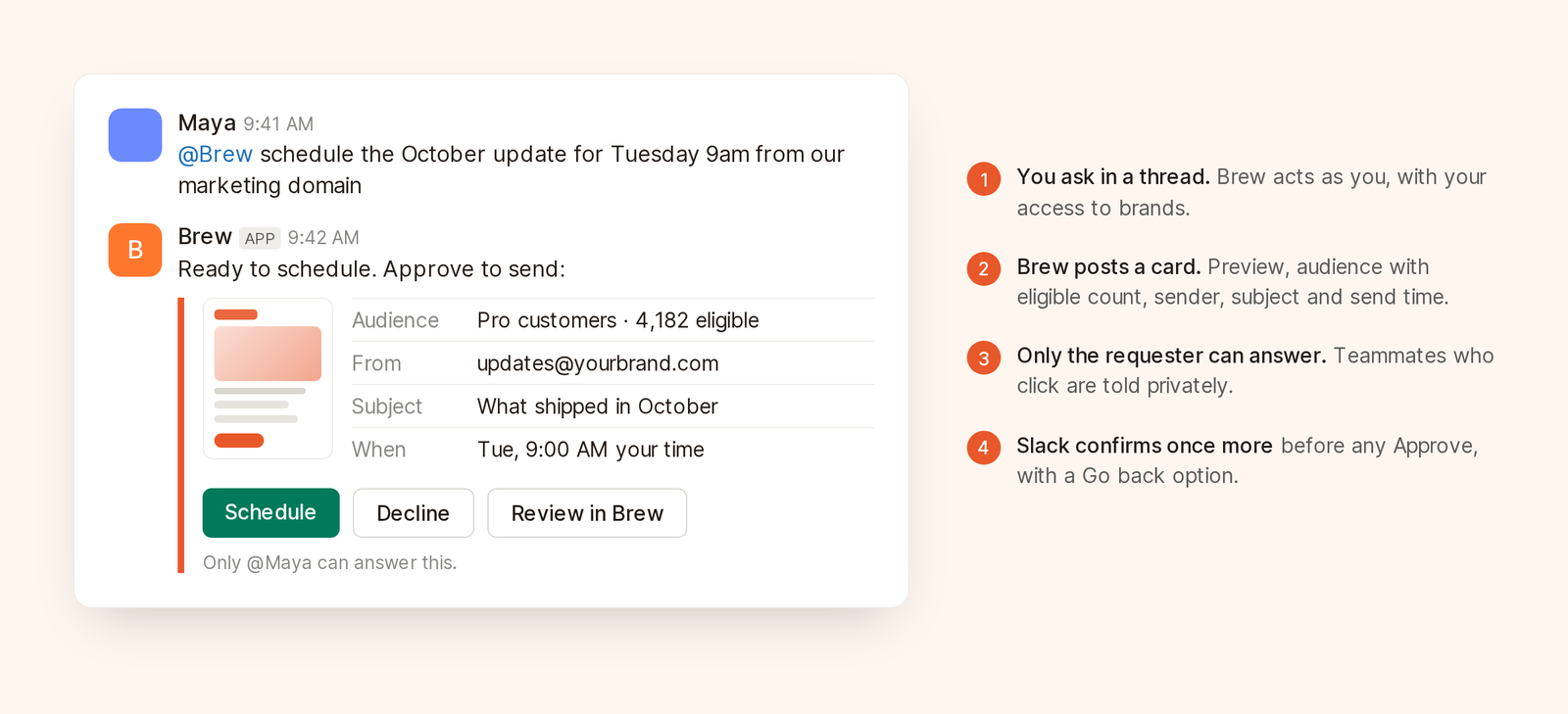
The approval card shows what goes out, to whom and when, before anyone clicks Approve.
Brew can draft and edit emails, answer questions about past sends, send tests, send or schedule campaigns, run audience automations, and pause, resume or cancel sends and runs. In DMs, each top-level message starts its own chat. In a channel, one thread is one chat.
It acts as you, with the same brand access you have in the web app. Billing, members, brand creation and organization settings stay in the web app, because a Slack link is weaker proof of identity than a signed-in browser.
An organization admin opens Integrations → Slack in Brew, clicks Connect and approves the app in Slack. One install covers the organization, which connects one Slack workspace at a time. Non-admins see the button disabled. The Slack docs cover the details.
The admin also controls Chat with Brew in Slack, on by default. Turning it off stops conversations but keeps notifications posting, handy if you want reporting before drafting.
The first time you mention or DM @Brew, it replies privately with a Connect your Brew account link. It works once and expires after 10 minutes. Open it while signed in, confirm, and Brew answers your original message, no retyping.
If your Slack email is not one of your verified Brew emails, you tick "This Slack account is mine" first, since the link lets a Slack user act with your Brew access. Unlink anytime from the Slack settings page in Brew.
@Brew draft the October product update for the Pro customers audience. Lead with Slack approvals, then Intelligent Send, then the new email audit. Link the changelog. Under 150 words.
A good brief names the audience, the order of what matters and one hard constraint. Brew reacts with the eyes emoji so you know it saw the message. It also reads attached docs or screenshots, up to 12 files per turn and 25 MB each. Installs from before file reading was added need an admin to reconnect first.
With Slack's agent features granted, answers stream in with progress steps and a native stop button. Older installs post a "working" message, then the answer. Reconnect Slack moves them to streaming and keeps everyone's links and notification settings. If Slack refuses a stream, for example under rate limits, Brew falls back to the classic reply.
The answer includes a picture of the email, up to 4 per answer, so the thread sees layout as well as copy, which helps with variants.
Revise like you would with a teammate:
shorter intro, and make the button say "Read the changelog"
If you started the thread, follow-ups need no mention. Anyone else has to mention @Brew, so side comments are not read as instructions.
For canvas work like nudging a layout, Brew links to the email in the web app, where the thread shows up as a chat with a Slack badge. For first prompts, how to brief an email agent has more examples.
send me a test
A test only to you runs straight away.
send a test to maya@example.com and jon@example.com
This reaches other people, so it gets an approval card. Tests are capped at 50 addresses.
@Brew schedule it for Tuesday 9:00 New York time from our marketing domain
The approval card shows:
The Approve button names the action: Send, Schedule, Send test, Run it or Resume. Slack then asks for one more confirmation, with Go back. If the send cannot go out as described, say the sending domain is not verified, the card reads Can't go yet and only offers Decline.
Read the eligible count first. If you expected 12,000 Pro customers and it says 340, better to learn that in Slack than from a quiet Tuesday dashboard.
The card says "Only @you can answer this." If a teammate clicks Approve or Decline, Brew tells them privately that only the person who asked can answer, and nothing happens.
"Anyone can approve" fails predictably. The person who wrote the brief has read the preview and checked the audience. Someone scrolling past a green button in a thread they did not start has done neither. A campaign to 40,000 people should not depend on who clicks first. If someone else should own the send, they ask Brew in their own message and get their own card.
The card confirms the action. It does not replace your team's review. If your organization uses a send-approval hold, it still applies after Approve, as in the web app.
| Action | Needs an approval card |
|---|---|
| Draft, edit or answer a question | No |
| Test send to yourself | No |
| Test send to other addresses (up to 50) | Yes |
| Send or schedule a campaign | Yes |
| Run an audience automation | Yes. A dry run does not |
| Pause a send or run | No |
| Resume or cancel a send or run | Yes |
Pausing skips the card on purpose. Stopping something that looks wrong should take one message, and a pause reaches no one.
Approvals belong in threads, results where the whole team reads. In Integrations → Slack, under Notifications for this brand, pick a channel and its updates:
New channels get all three. With up to 10 channels per brand, the overview can go to leadership and comment replies to the writers.
New users see up to 4 suggested prompts in Brew's Messages tab, such as "Draft a welcome email" and "How did my last campaign do?". Unlinked people see "Connect my Brew account" instead. That gets people started without a walkthrough.
Not a real send. Everything that can reach other people waits for an approval card. Tests to yourself and pauses run directly.
No. Only the person who asked can answer the card, including Decline. A teammate who should own the send asks Brew themselves and gets their own card.
No. You link your existing Brew account once, and Brew uses your access, so you see the same brands in Slack as in the web app.
No. Slack is good for drafting, approving and asking how a send did. Canvas layout work happens in Brew, where every Slack thread is also a chat.
The MCP campaign guide uses the same confirmation step for campaigns run from Claude or Cursor. The October update here also covers per-contact send-time optimization and the pre-send email QA checklist behind Brew's email audit.